# SECTION 5: Completing Inspections with Non-Compatible Drones
Even if your drone is not listed on the Eberl360 Pilot App Compatibility List,
you can still complete inspections.
# ✅ Check-In → 🕵️ Inspect → ⬅️ Check-Out → ☁️ Upload Later → ⬆️ Upload → 🌐 Web Portal Upload → ✅ Complete
# 1. Uploading images when using a Non-Compatible Drone
- ✅ Check-In → Check-in on the Eberl360 App.
- 🕵️ Inspect → Complete Exterior, and then Interior (if required).
- ⬅️ Check-Out → Under Job Task – Slide to Check Out when finished.
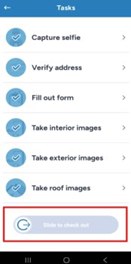
- ☁️ Upload Later → When asked to upload drone images, select "Upload Later from Website."
- ⬆️ Upload → Verify that ALL Exterior/Interior images have finished uploading.
- 🌐 Web Portal Upload → Log into the Web Portal App (opens new window) to upload drone images.
(Use the same Username and Password as your Eberl360 App.) - ✅ Complete → After you have completed the drone image upload, click Complete.
⚠️ Important:
If you do not check out of the job in the Eberl360 App first and upload ALL Exterior/Interior Images first, you will not be able to complete the Web Portal upload of the drone images.
# 2. 🖼️ Image Capture Tips
- Take transition images (sky/grass) when switching between:
- ZigZag → Closeups
- Front slope → Right slope, etc.
- Right-click images → assign correct category/label.
- Double-check that no required images are missing.
# 3. 🚫 Avoiding Reworks
⚠️ Missing images = Rework issued
- Must be reinspected within 48 hours.
- No extra compensation for reworks.
- Reworks waste Eberl time & resources and may cause missed cycle times.
# 🎯 Goal:
Minimize reworks → Save time → Protect our cycle times → Keep inspections smooth.