# SECTION 4: E360 App Registration & Onboarding
# 1. Download App
# 2. Web Application
Eberl Pilot Web App (manual image upload):
https://app-360.eberls.com/ (opens new window)Chrome APK:
Download Chrome APK (opens new window)
# Step 1 – Download the E360 App & Register
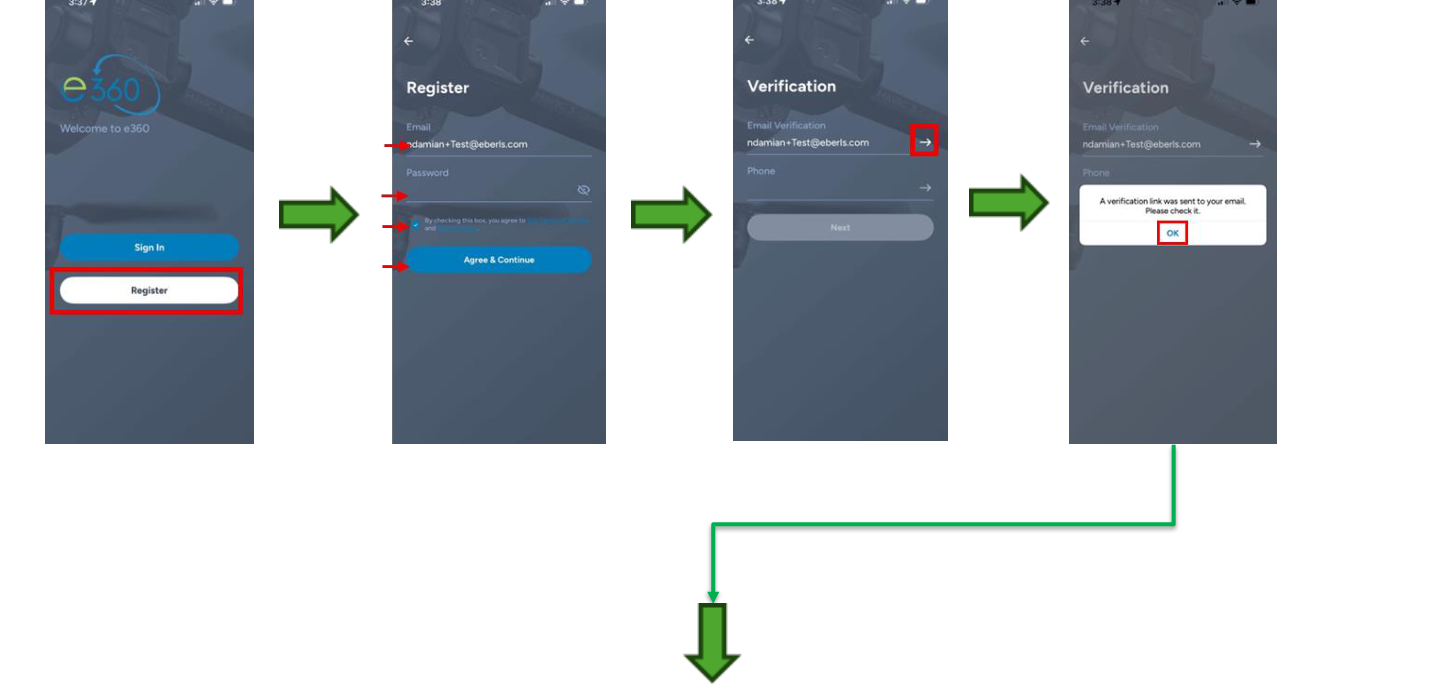
- Download the E360 mobile app from the Apple App Store or Google Play Store.
- Create your account.
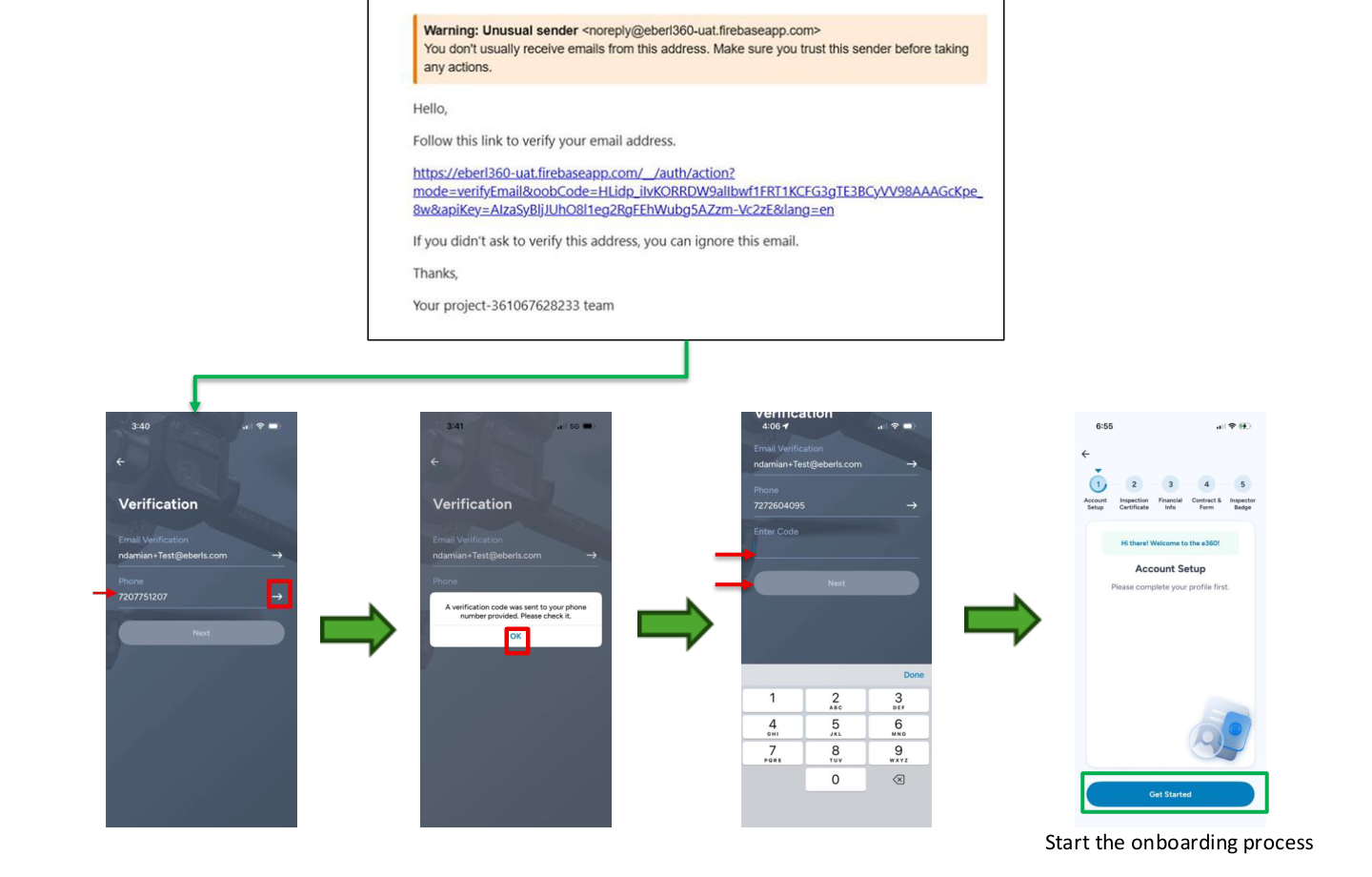
- Click the white arrow next to your email to receive the verification link.
- Click the white arrow next to your phone number to receive the SMS verification code.
- Enter the verification codes to complete registration.
Important: You must click the white arrow for the system to send the verification message.
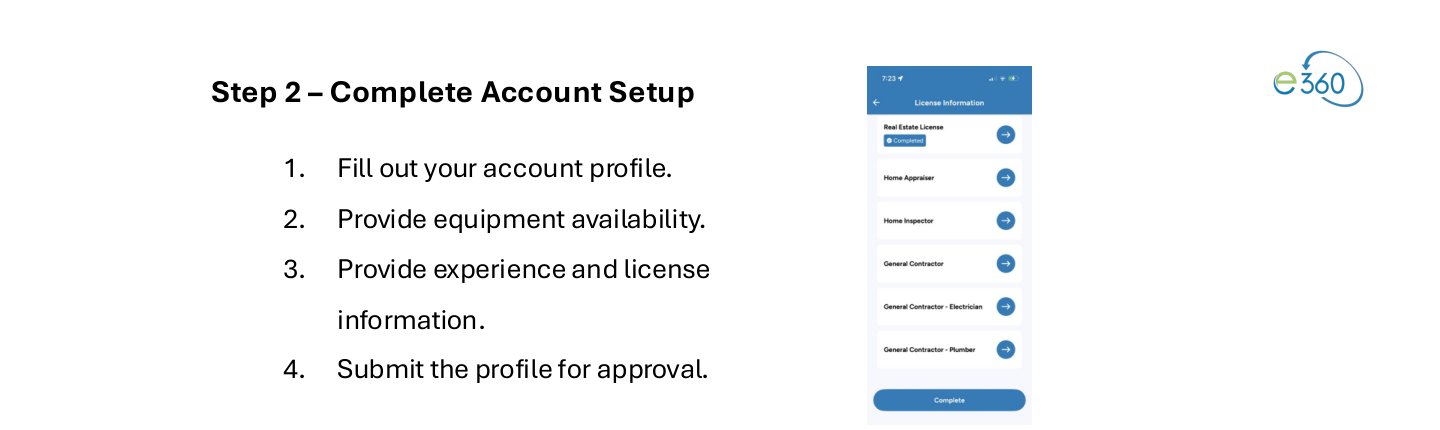
# Step 2 – Complete Account Setup
- Fill out your account profile.
- Provide equipment availability.
- Provide experience and license information.
- Submit the profile for approval.
TIP
Once submitted, the application will be reviewed manually. No additional action is required during this period. Upon approval, you can proceed to select your badges.
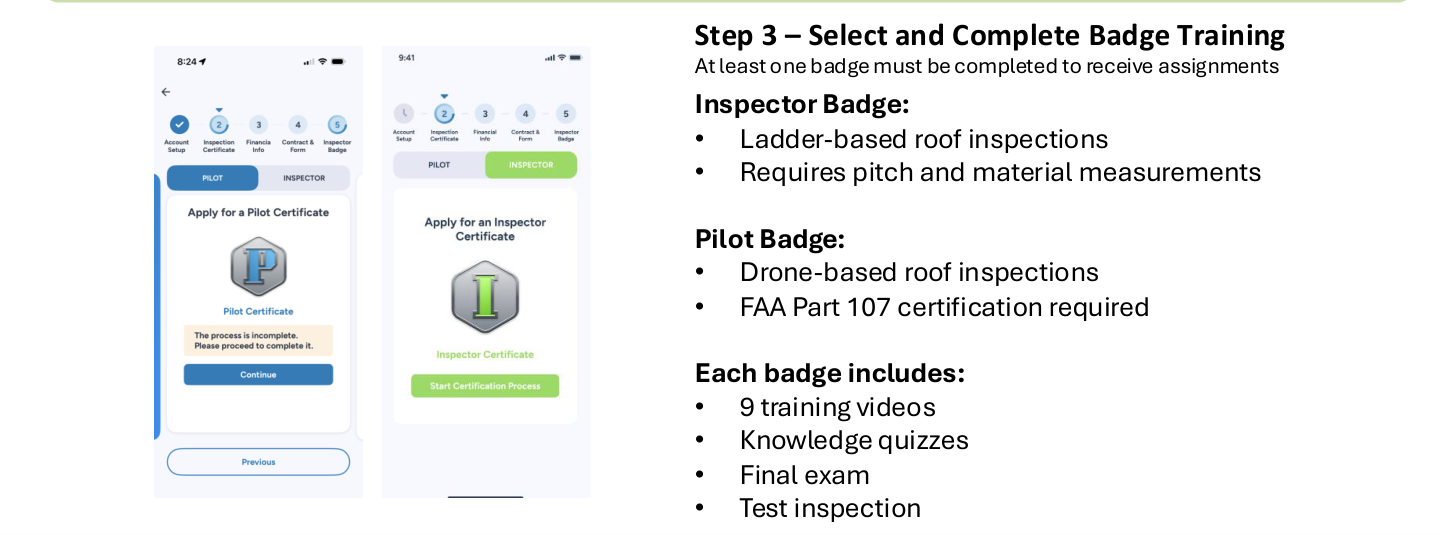
# Step 3 – Select and Complete Badge Training
At least one badge must be completed to receive assignments.
- Inspector Badge — Ladder-based roof inspections. Requires pitch and material measurements.
- Pilot Badge — Drone-based roof inspections. FAA Part 107 certification required.
Each badge includes:
- 9 training videos
- Knowledge quizzes
- Final exam
- Test inspection
# Adjuster Badge (Optional)
Available for licensed adjusters to record license information. Does not include training or a test inspection. Becomes available under main menu certifications after the test inspection is completed.
# Step 4 – Complete a Test Inspection
After passing the final exam, you must complete a test inspection. An email with detailed guidelines will be sent after the final exam is completed.
Each badge has specific image requirements that must be followed.
Important: Check your spam or junk folder for this email and review the guidelines before completing the test inspection. Do not attempt to complete the test inspection prior to reviewing the guidelines.
# Step 5 – Compliance & Final Setup
Once the test inspection is approved, complete the following:
- Submit W-9 form
- Sign Independent Contractor Agreement
- Complete background check
Upload insurance documentation:
- Business liability insurance (Inspector)
- Aviation liability insurance (Pilot)
- Both if applicable
Do not upload your vehicle liability insurance.
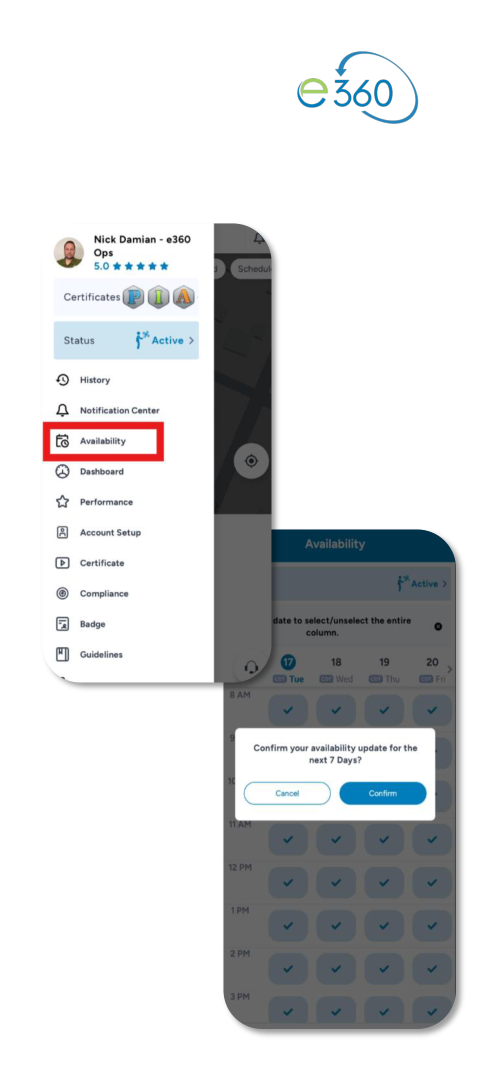
# Final Step – Set Availability
After all steps are completed, open the E360 app and set your availability. Once availability is set, you will be eligible to receive assignments when work becomes available in your area.
Completion Criteria — Users are fully onboarded once the following are completed:
- Registration and verification
- Badge training
- Test inspection approval
- Compliance documents submitted
- Insurance documentation uploaded
- Availability set in the app
Outcome — Once onboarding is complete, you are eligible to accept assignments through the E360 platform.