# SECTION 5: Drone Compatibility List with Controllers
# Eberl Inspections App — Android (MSDK 4.18) and IOS devices (MSDK 4.16.2)
- IOS App Store — https://apps.apple.com/us/app/eberl-inspection/id1434146595 (opens new window)
- Android and Smart Controller — https://io-360.eberls.com/app-download/ (opens new window)

- Phantom 4 Advanced
- P4 Multispectral
- Phantom 4 RTK
- Mavic Mini
- DJI Mini 2
- DJI Mini 2 SE
- Mavic Air
- Mavic Air 2
- DJI Air 2S
- Mavic Pro
- Mavic Pro Platinum
- Mavic 2 Pro / Standard GL200A
- Mavic 2 Zoom
- Mavic 2 Enterprise
- Mavic 2 Enterprise Dual
- Mavic 2 Enterprise Advanced
- DJI Matrice 200 V2
- DJI Matrice 210 V2
- DJI Matrice 210 RTK V2
Other models include Inspire 1, Inspire 1 Pro & Inspire 1 RAW | Inspire 2 | Matrice 600 & Matrice 600 Pro | Phantom 3 Standard, Advanced, 4K & Professional | Matrice 100 with X3, X5 & X5R (Android MSDK 4.18 also supports Matrice 350 RTK).
# Eberl Inspections App — Android device (Mobile SDK v5.15.0)
Not Supported by IOS
- Android and Smart Controller — https://io-360.eberls.com/app-download/ (opens new window)

- DJI Mavic 3E
- DJI Mavic 3M / 3T
- DJI Mavic 3D / 3T
- DJI Matrice 300 RTK
- DJI Matrice 350 RTK
- DJI M30 Series
- Matrice 4E / 4T
- Matrice 4D / 4TD
- Matrice 400
- DJI Mini 3
- DJI Mini 3 Pro
- DJI Mini 4 Pro
RC Pro and RC Pro 2 controllers or, any DJI smart controller that supports third party apps: You will need to install the Chrome APK unless you already have this on your smart controller – select the Chrome browser as default browser when prompted via MFA code.
Both compatible and non-compatible drones may be used to complete inspections. However, only compatible drones can be used with the Eberl Inspections App. App compatibility depends on the specific drone and controller make/model. Currently, DJI is the only drone manufacturer whose aircraft are included on the list of compatible drones, and only models for which DJI has released SDK support are eligible for app integration.
# Completing Inspections with Non-Compatible Drones
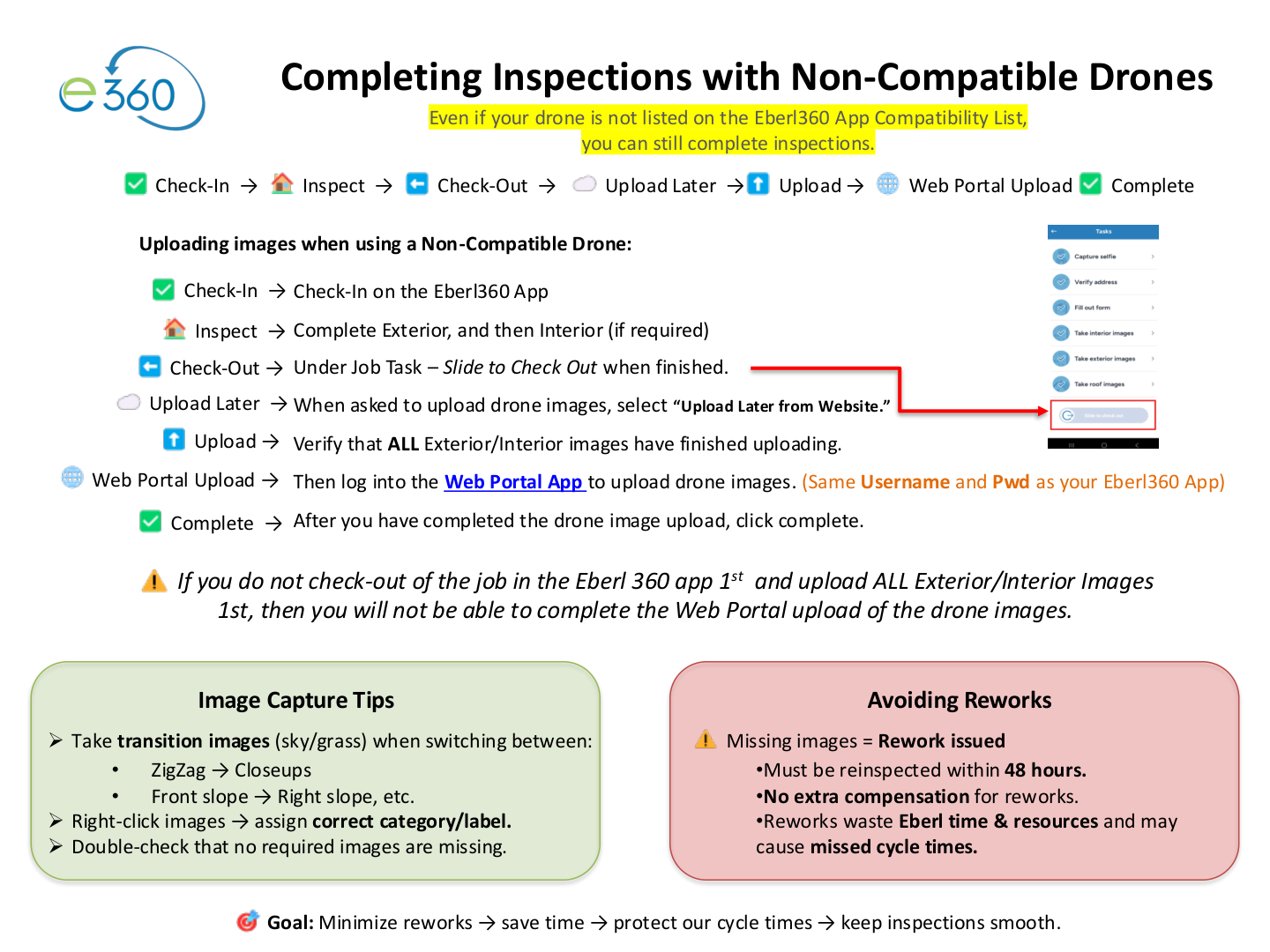
Even if your drone is not listed on the Eberl Inspections App Compatibility List, you can still complete inspections.
# ✅ Check-In → 🏠 Inspect → ⬅️ Check-Out → ☁️ Upload Later → ⬆️ Upload → 🌐 Web Portal Upload → ✅ Complete
# 1. Uploading images when using a Non-Compatible Drone
- ✅ Check-In → Check-In on the Eberl Inspections App.
- 🏠 Inspect → Complete Exterior, and then Interior (if required).
- ⬅️ Check-Out → Under Job Task – Slide to Check Out when finished.
- ☁️ Upload Later → When asked to upload drone images, select "Upload Later from Website."
- ⬆️ Upload → Verify that ALL Exterior/Interior images have finished uploading.
- 🌐 Web Portal Upload → Then log into the Web Portal App (opens new window) to upload drone images.
(Same Username and Pwd as your Eberl Inspections App.) - ✅ Complete → After you have completed the drone image upload, click Complete.
⚠️ Important:
If you do not check-out of the job in the Eberl Inspections App 1st and upload ALL Exterior/Interior Images 1st, then you will not be able to complete the Web Portal upload of the drone images.
# 2. 🖼️ Image Capture Tips
- Take transition images (sky/grass) when switching between:
- ZigZag → Closeups
- Front slope → Right slope, etc.
- Right-click images → assign correct category/label.
- Double-check that no required images are missing.
# 3. 🚫 Avoiding Reworks
⚠️ Missing images = Rework issued
- Must be reinspected within 48 hours.
- No extra compensation for reworks.
- Reworks waste Eberl time & resources and may cause missed cycle times.
# 🎯 Goal:
Minimize reworks → save time → protect our cycle times → keep inspections smooth.