# SECTION 11: Interior Images & HOVER 3D Scan
# HOVER App & Account Setup
HOVER Help Center: 1.844.754.6837 | support@hover.to
# Step 1 – Download the HOVER App (required)
# Step 2 – Create an Account
- Create a new account (if you haven't already) using the same email address associated with your e360 account.
- Familiarize yourself with interior room scanning by using Hover's free test scan before heading out to your assignment(s).
HOVER Resources – Quick training videos (recommended):
- Interior Scans | Hover Help Center (opens new window)
- Video: Interior Capture Walkthrough (Lidar Scan) (opens new window)
- Video: Interior Capture Walkthrough (Universal Scan) (opens new window)
Remember: Always bring a laser or manual measuring tape to capture room measurements in case the app encounters technical difficulties that prevent a HOVER scan.
# Setting Up Structures and Rooms for Interior Capture in E360
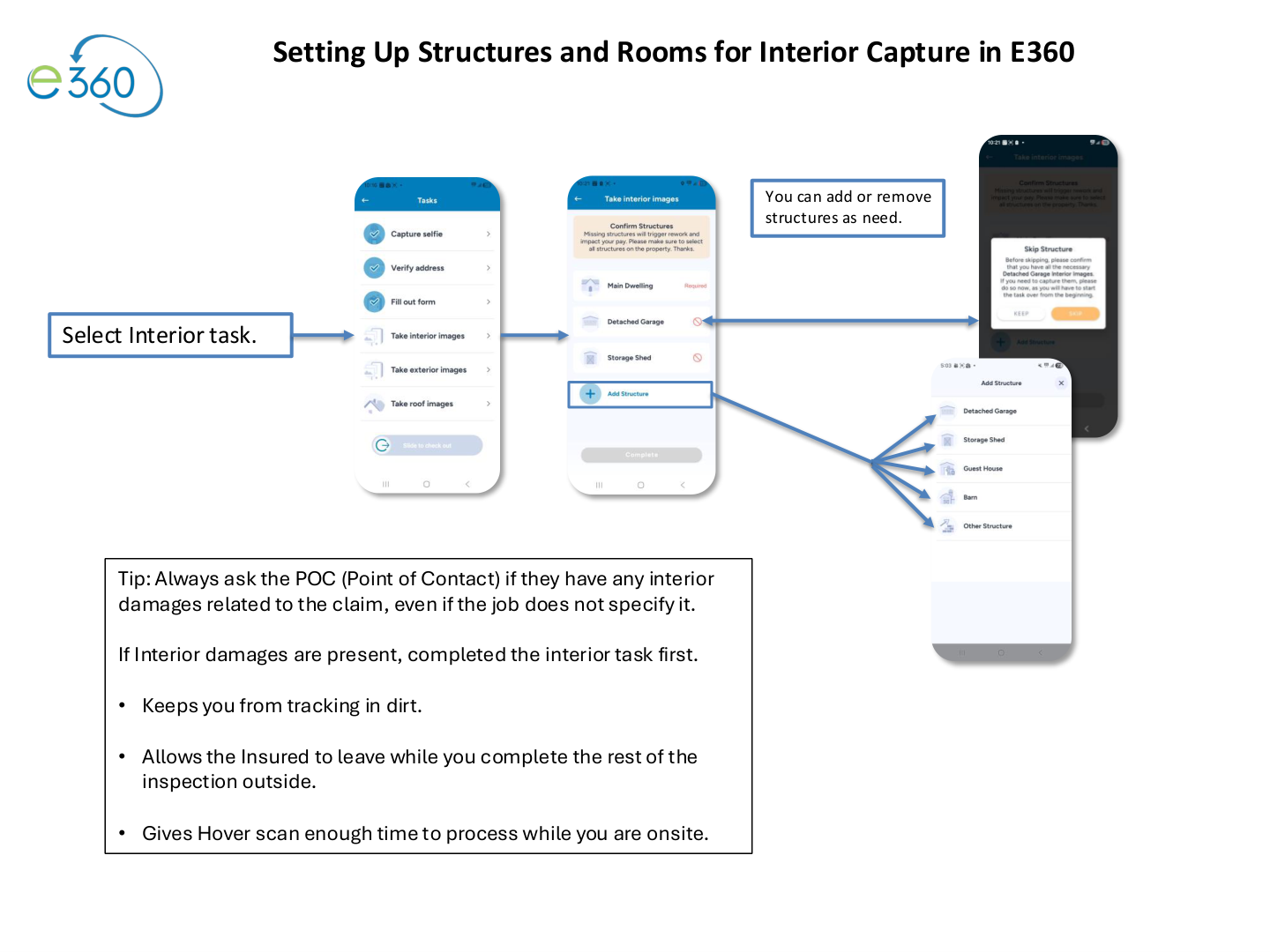
Tip: Always ask the POC (Point of Contact) if they have any interior damages related to the claim, even if the job does not specify it. If interior damages are present, complete the interior task first — it keeps you from tracking in dirt, allows the insured to leave while you finish outside, and gives the HOVER scan enough time to process while you are onsite.
Select "Structure" to view the preselected default rooms. You can add or remove rooms as needed.
Important: Verify with the Insured/POC any structures or rooms that require interior inspection and add them in the E360 app Interior Task section before proceeding.
# Interior Scan Setup
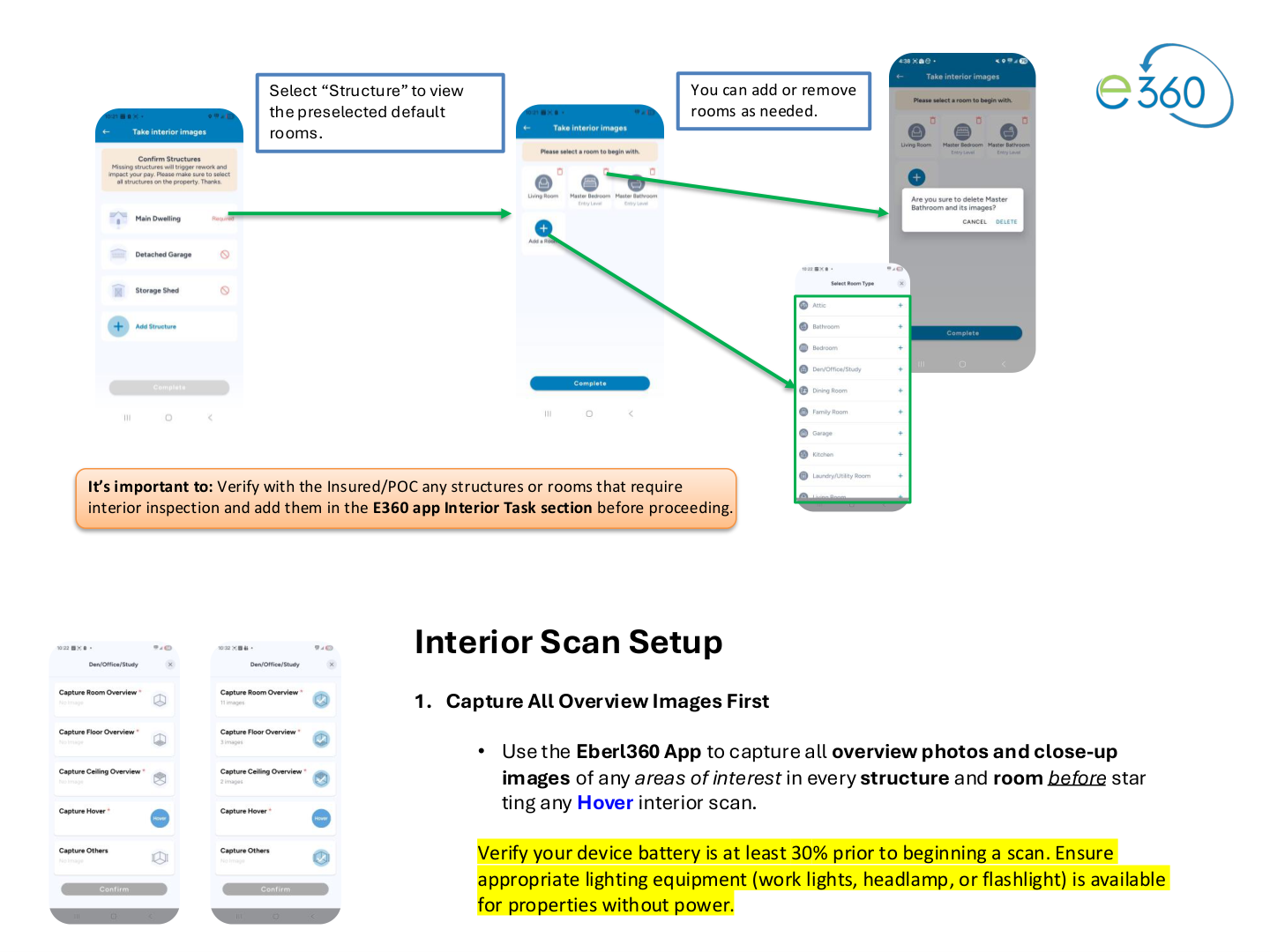
# 1. Capture All Overview Images First
- Use the Eberl360 App to capture all overview photos and close-up images of any areas of interest in every structure and room before starting any HOVER interior scan.
- Verify your device battery is at least 30% prior to beginning a scan.
- Ensure appropriate lighting equipment (work lights, headlamp, or flashlight) is available for properties without power.
# 2. Open HOVER from the Main Dwelling
- Go to the Main Dwelling structure in Eberl360.
- Select any room.
- Click the HOVER deeplink to open HOVER.
Note: You must be logged into HOVER using the same email as your Eberl360 account.
# 3. Complete the Main Dwelling Rooms
- Start by scanning all rooms located on your first floor/level.
- Each floor/level is a separate HOVER order. Do NOT mix two floors in the same scan. Complete and submit the first floor before moving to the next.
# 4. Add Additional Floor(s) (Levels)
If the main dwelling has additional floors:
- Select Add Level
- Add the rooms for that floor and complete the scans.
# 5. Add Other Structure(s)
For detached structures (garage, shed, etc.):
- Select Add Level
- Add a room within that level
- Complete the scan for that structure.
Important: Do not create a new project in the HOVER app for interior scans. All additional floors and structures must be added using the Add Level option.
For Universal Scans, keep the app open until status changes to "Evaluating" (not "building"). For LiDAR scans, review the real-time 3D model after each room and tap Rescan if anything is missing, then Confirm.
# HOVER Troubleshooting & Tips
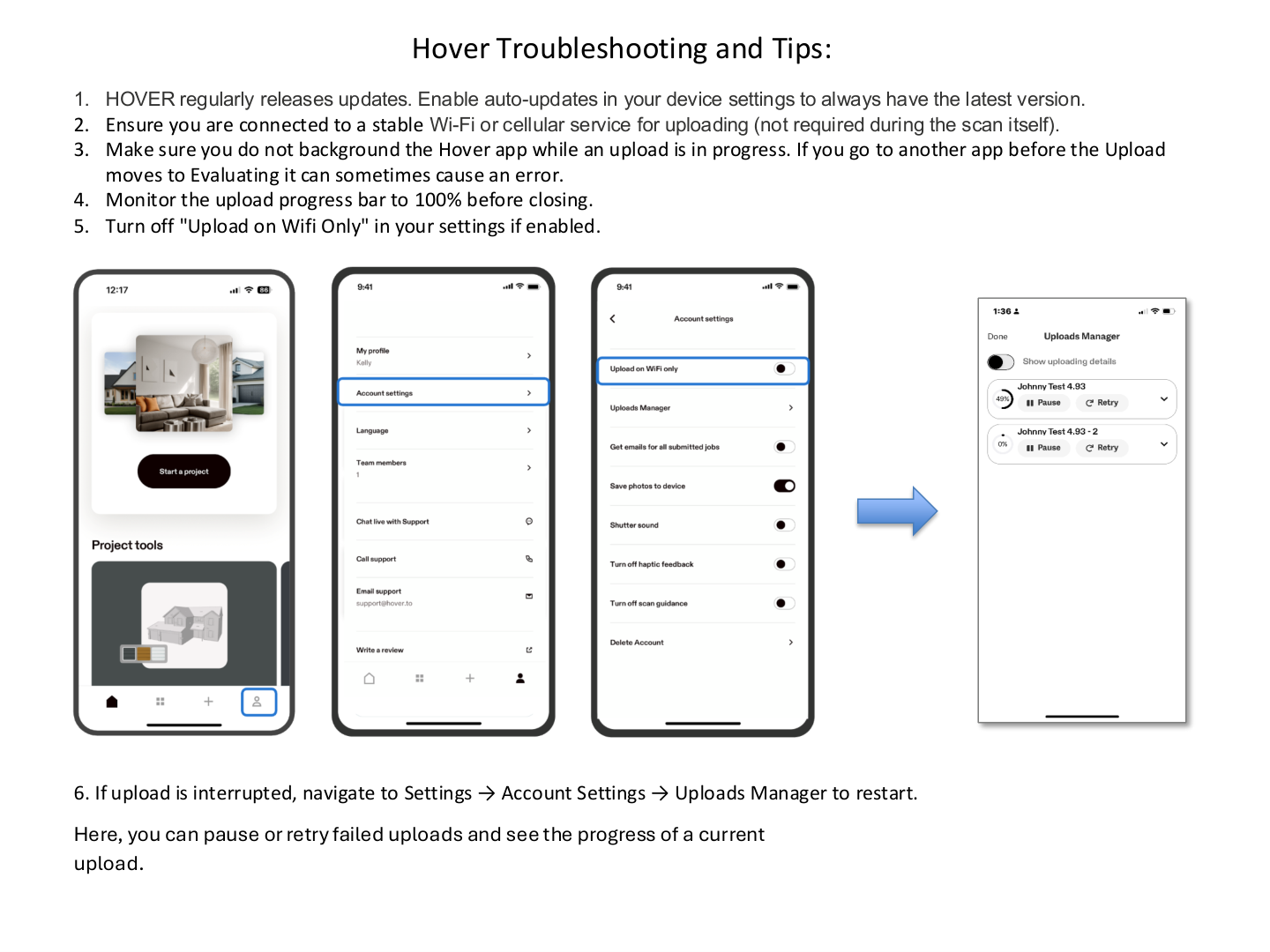
- HOVER regularly releases updates. Enable auto-updates in your device settings to always have the latest version.
- Ensure you are connected to a stable Wi-Fi or cellular service for uploading (not required during the scan itself).
- Make sure do not background the HOVER app while an upload is in progress. Going to another app before the upload moves to "Evaluating" can cause an error.
- Monitor the upload progress bar to 100% before closing.
- Turn off "Upload on Wifi Only" in your settings if enabled.
- If upload is interrupted, navigate to Settings → Account Settings → Uploads Manager to restart. Here you can pause or retry failed uploads and see the progress of a current upload.