
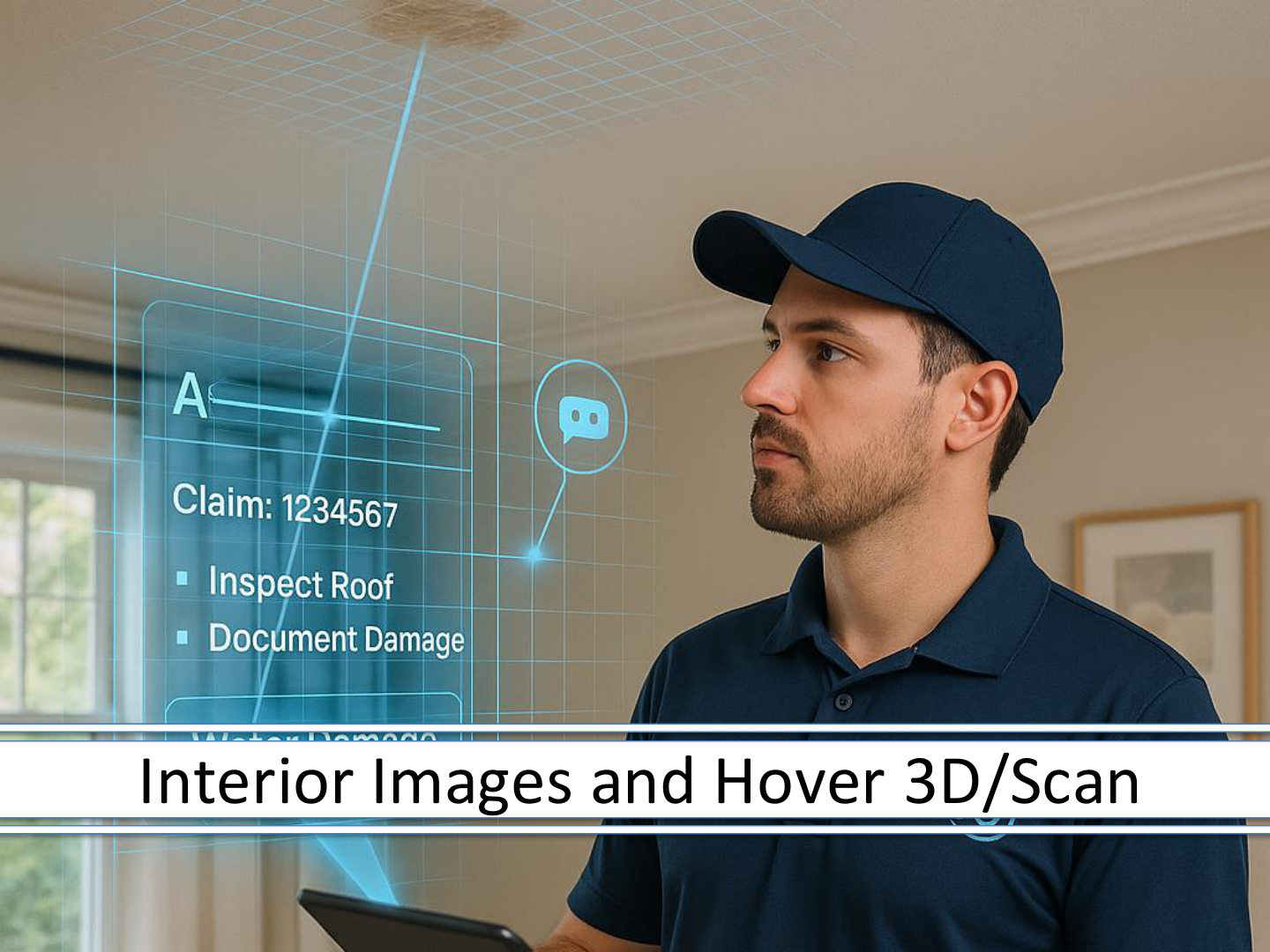
# SECTION 14: Interior Images and Hover 3D/Scan
# HOVER App and Account Setup
Hover Help Center: 1.844.754.6837 | support@hover.to
# Step 1 – Download the HOVER app (required)
# Step 2 – Create an Account
- Please create a new account (if you haven't already) using the same email address associated with your Eberl Inspection account.
- Familiarize yourself with interior room scanning by using Hover's free test scan before heading out to your assignment(s).
Hover Resources – Quick training videos (recommended):
- Interior Scans | Hover Help Center (opens new window)
- Video: Interior Capture Walkthrough (Lidar Scan) (opens new window)
- Video: Interior Capture Walkthrough (Universal Scan) (opens new window)
Remember: Always bring a laser or manual measuring tape to capture room measurements in case the app encounters technical difficulties that prevent a HOVER scan.
# Hover Workflow Redesign – What Is Changing
What Changed
- Previously: Hover jobs were nested within each room. Inspectors had to launch the Hover app from inside an individual room, which caused confusion because a Hover deeplink was inserted into every room — even though only one was needed to complete the entire structure.
- Now: One Hover job is created per structure, and the Hover workflow exists outside of the room-level workflow.
- A second (backup) Hover job per structure is now available if needed.
- This capability now applies to other structures (detached garage, storage shed, etc.) — not available in the prior workflow.
How Interior Tasks Are Triggered
- Option 1: When the Operations Coordinator speaks with the insured and interior damages are reported, the interior task is added.
- Option 2: If the inspector arrives on site and identifies interior damage, they can manually add the interior task using the Add Interior button in the top-right corner of the Task section.
# Frequently Asked Questions — Interior Capture
Q: Do I need to capture every room in the home?
A: No. Affected rooms are the rooms the insured has identified as damaged — the insured tells us where the damage is. Capture those rooms only; you do not need to photograph every room in the property.
Q: What is best practice for room captures and Hover?
A: Capture all affected rooms in the Eberl Inspections app first, including all required images. Once all affected rooms on all levels are documented for that structure, complete the Hover scan (keep the Hover app open until status changes to "Evaluating").
Q: What do I capture for each affected room?
A: Required: Room Overview, Floor Overview, and Ceiling Overview. Optional: other contents or supporting photos if prompted. No photos are needed inside the Hover app — the scan captures what is needed.
Q: When does level selection apply?
A: Only when adding bedrooms or bathrooms. Other room types (e.g., living room) do not require level selection.
Q: How many Hover scans are required for a property?
A: One Hover scan per applicable level within each structure where affected rooms are documented. Complete all affected rooms for a level before running the Hover scan for that level.
Q: What if a listed room has no damage?
A: Remove it from the list if the app allows. The interior task cannot be completed until all listed rooms are completed or removed. The interior task itself cannot be removed once it has been added — if the interior does not apply at all, check out and select the reason the section was not completed.
# FAQ – Hover Job, Level, and Room
Q: What is a Hover job?
A: The 3D scan project created in the Hover app for a specific structure. Tapping Capture 3D Diagram with Hover opens Hover and starts a new job. One Hover job = one structure (e.g., Main Dwelling or Detached Garage).
Q: What does a level or room mean in Hover?
A: A level is a grouping of rooms on the same floor and can contain multiple rooms (e.g., living room and kitchen). A room is an individual space scanned within a level. If a structure has affected rooms on more than one floor, add a new level in Hover before submitting — do not submit until all levels are included.
Q: What does "other structure" mean for a Hover job?
A: Each separate building (e.g., detached garage, storage shed) is its own Hover job. Selecting Capture 3D Diagram with Hover for a different structure creates a new job. Name each job clearly (e.g., "Detached Garage"). Each structure's job can include multiple levels.
Q: How does the Hover job connect back to the Eberl app?
A: The Eberl app organizes captures by structure > level > room, and Hover mirrors this. Capture all room images in the Eberl app first, then launch Hover to scan the same rooms in the same order. Match your job name, level, and room organization to keep both apps aligned.